The note, not every millisecond
Each note gets an estimated pitch center and color feedback. Natural vibrato can move around that center without every peak and dip becoming its own grade.
 Vocal Light App Store soon
Singing practice, made visible
Singing moves. Your feedback should make sense of it. Vocal Light estimates where each note is centered and shows how close that center is to pitch—not just where your voice is at every millisecond.
Inside the app
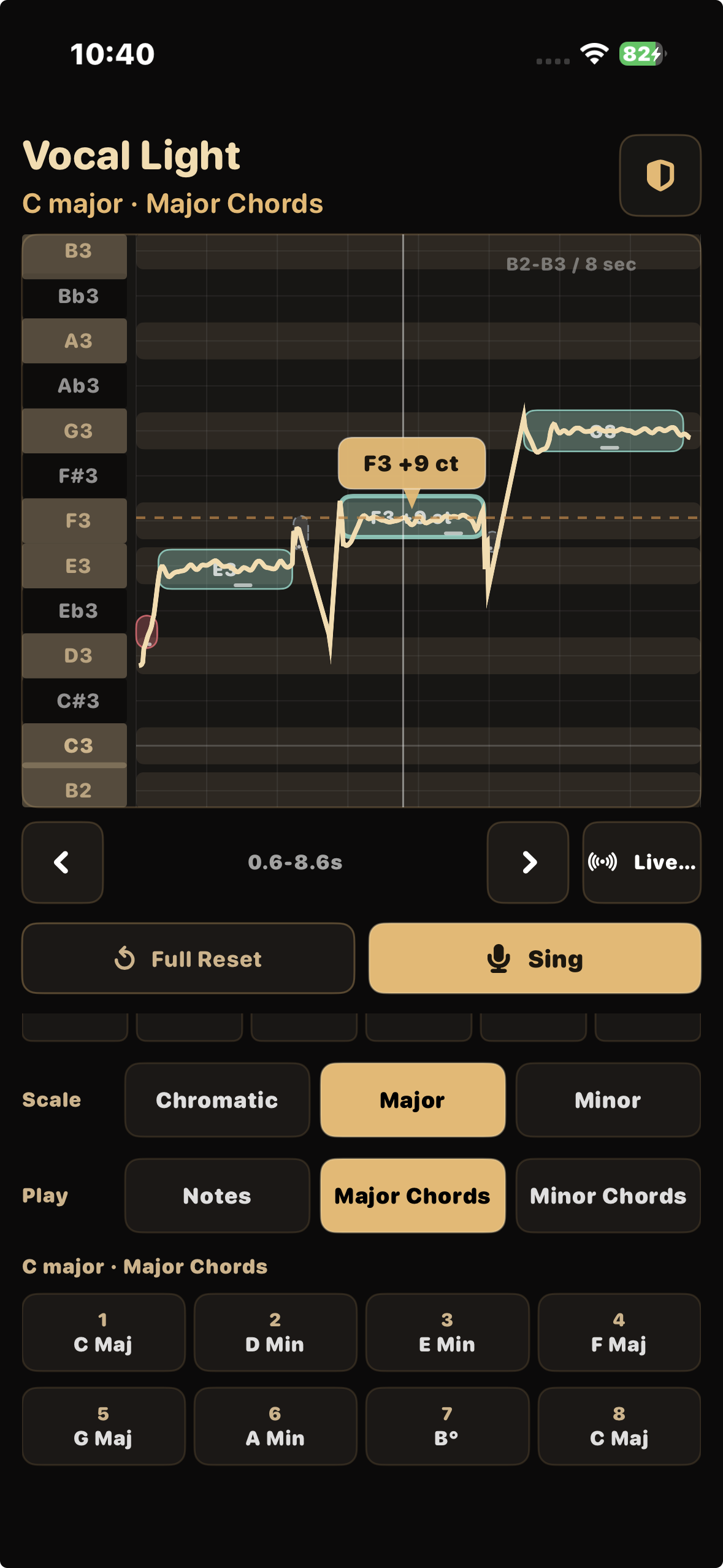
Explore a phrase, choose your range, and learn the gestures. These screens are captured from Vocal Light, not interface mockups.
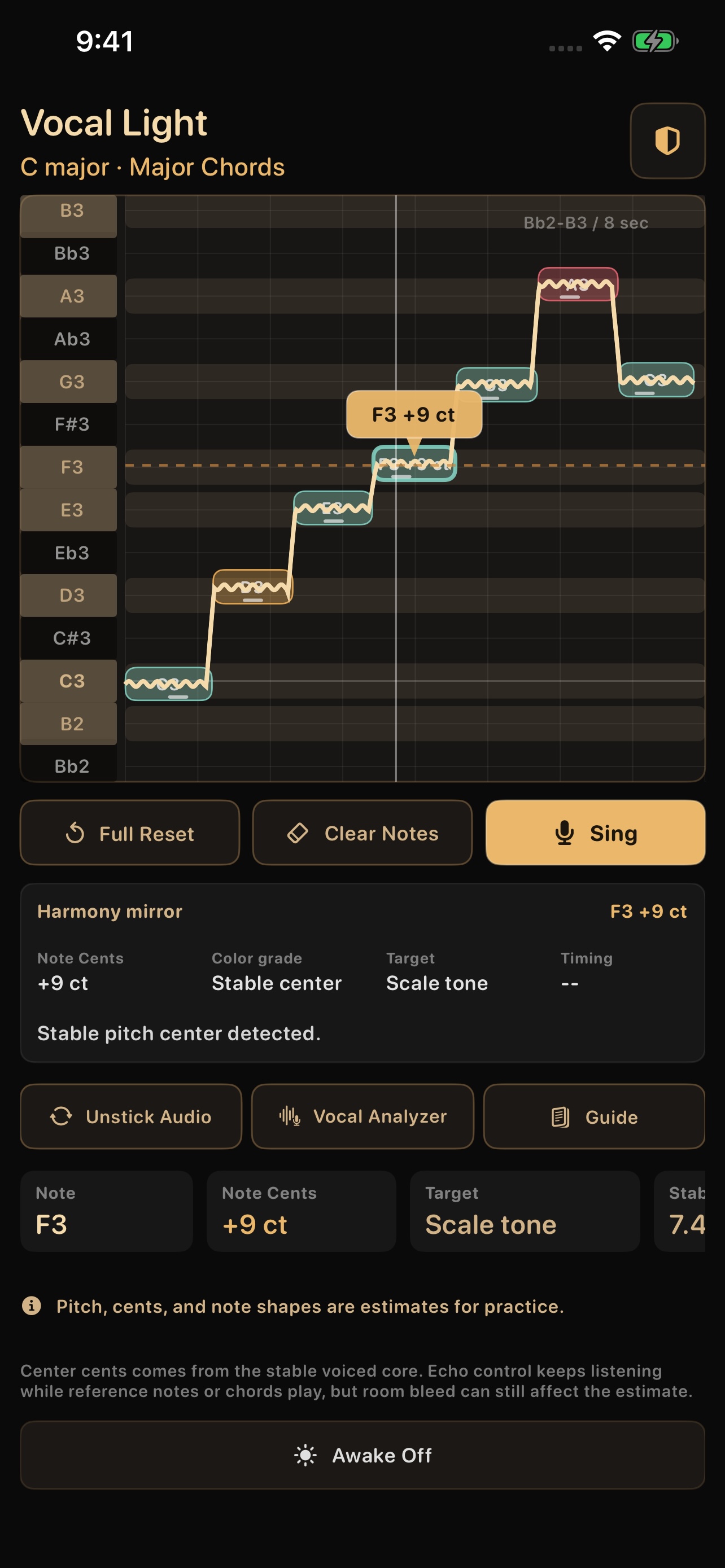
Tap a note for its center cents. Scrub across it to inspect individual samples.
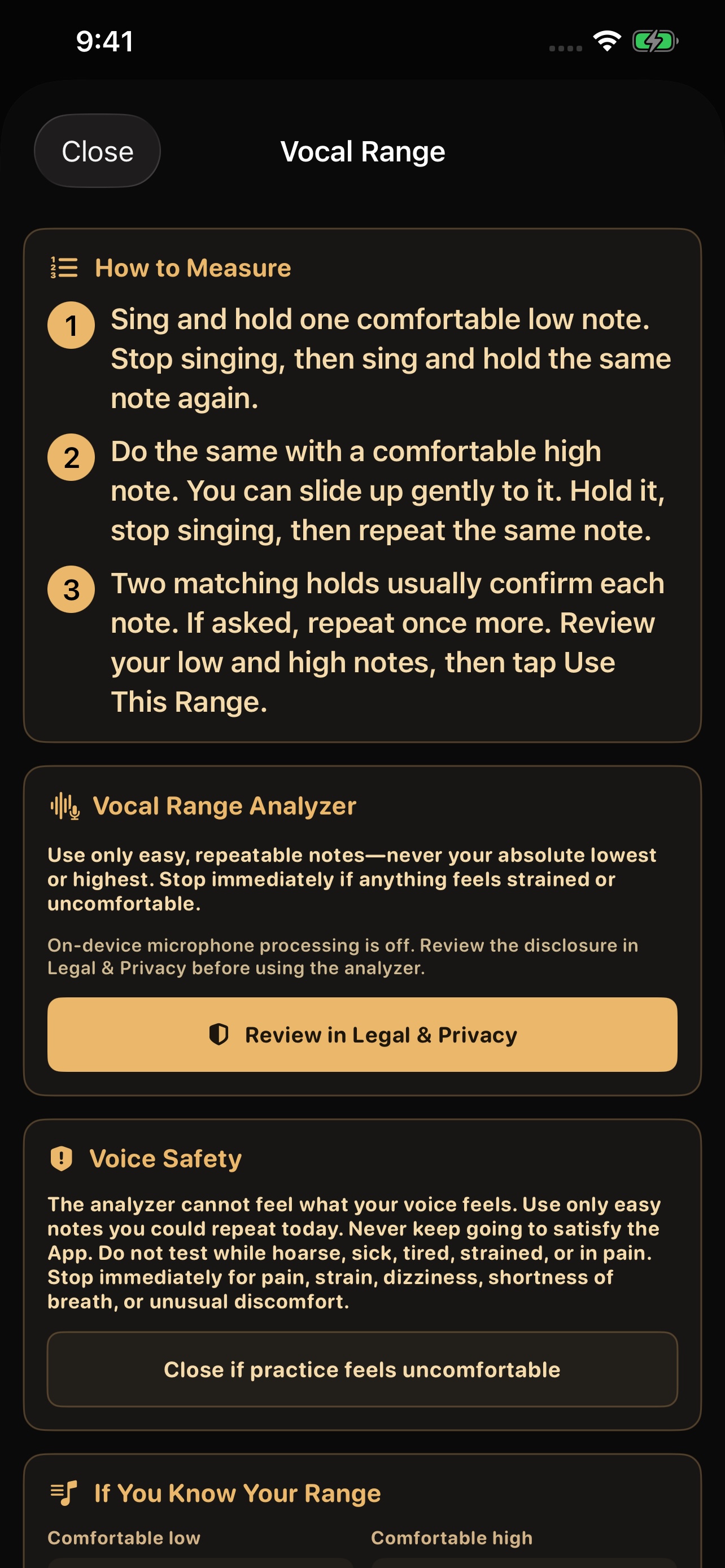
A comfortable low and high also set the register for the notes and chords you hear.
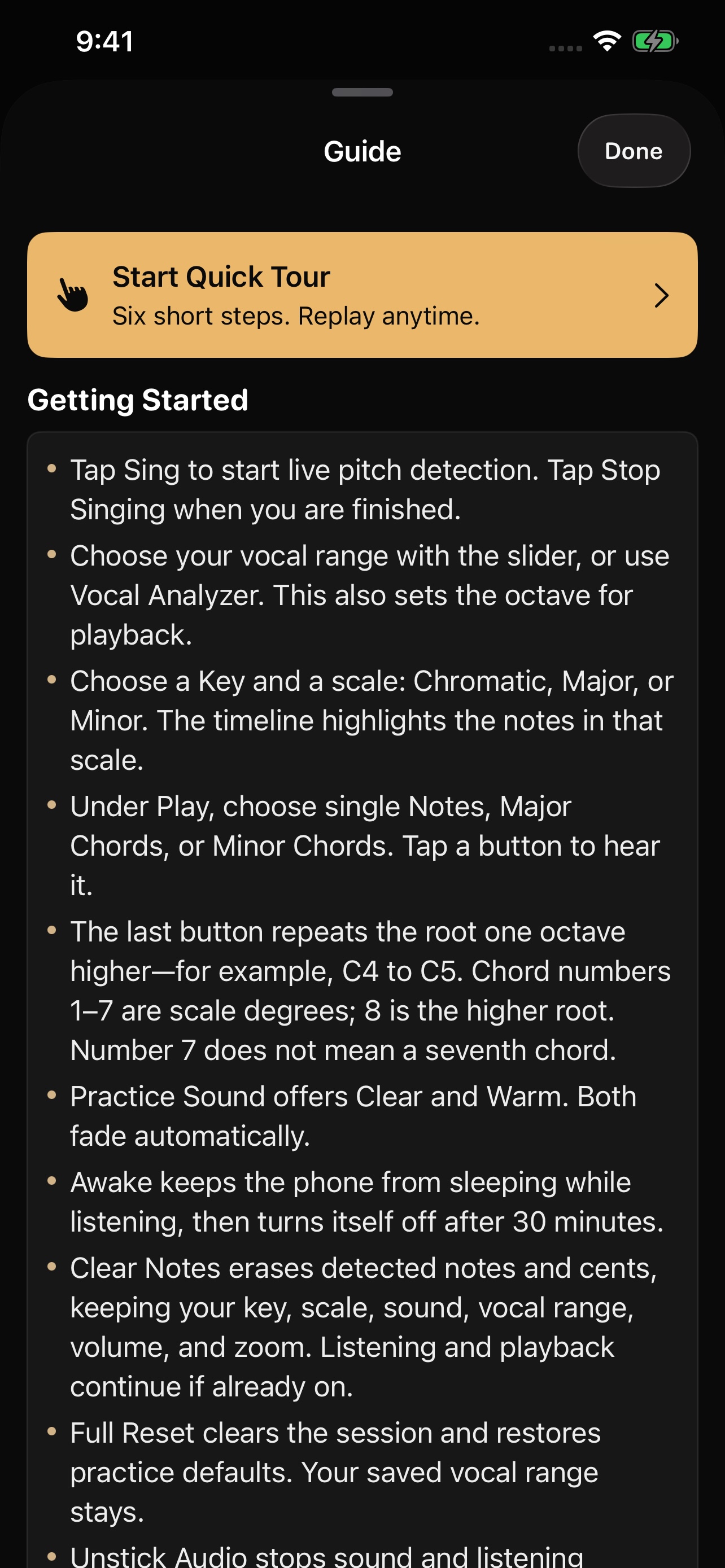
Open Guide, then Start Quick Tour for six short, illustrated steps you can revisit anytime.
Focused feedback
Enough detail to investigate a phrase—without turning practice into a music-theory cockpit.
Each note gets an estimated pitch center and color feedback. Natural vibrato can move around that center without every peak and dip becoming its own grade.
Set a comfortable practice range and Vocal Light places reference notes and chord voicings in a register that fits it.
Choose a key, practice chromatically, or sound key notes and diatonic major or minor chords from one focused surface.
Hold one comfortable low note, stop singing, and repeat it. Do the same with a comfortable high note, then review and save your range.
Practice, then inspect
Start with the note’s estimated center—not its most extreme instant. Green, yellow, and red show how that center falls within the selected pitch bands. Vibrato and slides remain visible in the line; scrub to inspect any individual sample. Very brief or unsettled notes can remain ungraded rather than receive a misleading color.
A simple loop
Choose a comfortable range and key. Reference tones follow your saved range.
Watch your phrase take shape. See where each note is centered, then explore the details.
Tap a note for its center, scrub for samples, or use two fingers to move and zoom.
Version 1.0
Vocal Light is preparing for a limited United States App Store release for adults 18 and older.
Vocal Light provides estimates for general singing practice. It is not a medical device, professional vocal assessment, or hearing-protection system. Live pitch is designed for one unaccompanied voice. Practice comfortably and stop for pain, strain, dizziness, or hearing discomfort.
Voice & Playback Safety